Generating an API Key
API Keys are required for secure, programmatic access to the BlitzTrader Gateway. This guide explains every step in detail, from account prerequisites to generating your API Key and managing your applications.
Good to Know
You need to be logged into your account to view the "My Apps" section, generate new keys, or manage existing ones.
Prerequisites Before You Start
Before creating an API key, ensure the following:
Active BlitzTrader Account
You must already have verified BlitzTrader account.
Step-by-Step Guide
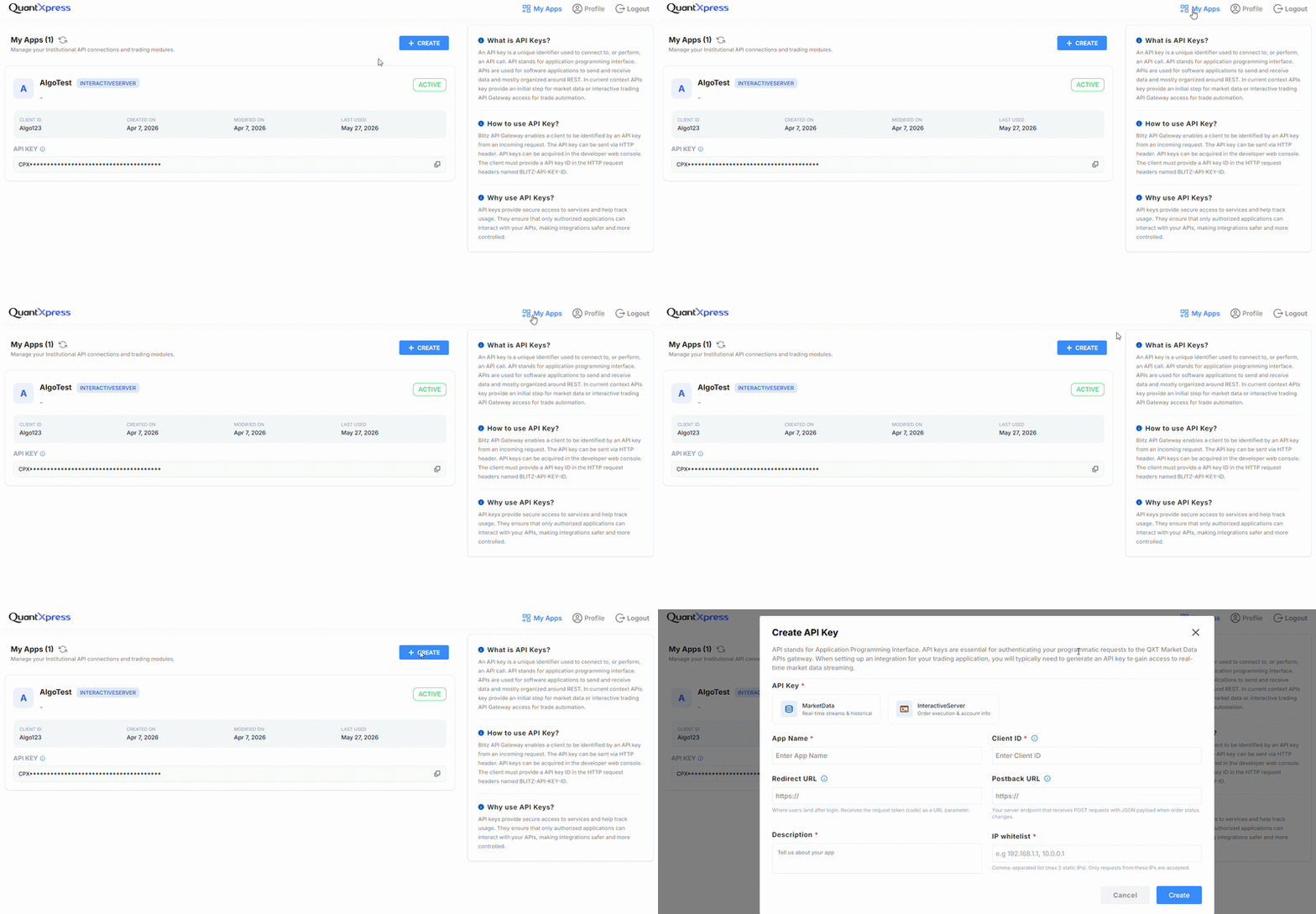
Step 1: Visit the API Management Portal
Once you've logged into the BlitzTrader Portal, navigate to the API Management or My Apps section in your account dashboard.
Step 2: Create a New App
To generate an API key, you must create an "App". This App represents your software or platform connecting to BlitzTrader.
- Click the Create button.
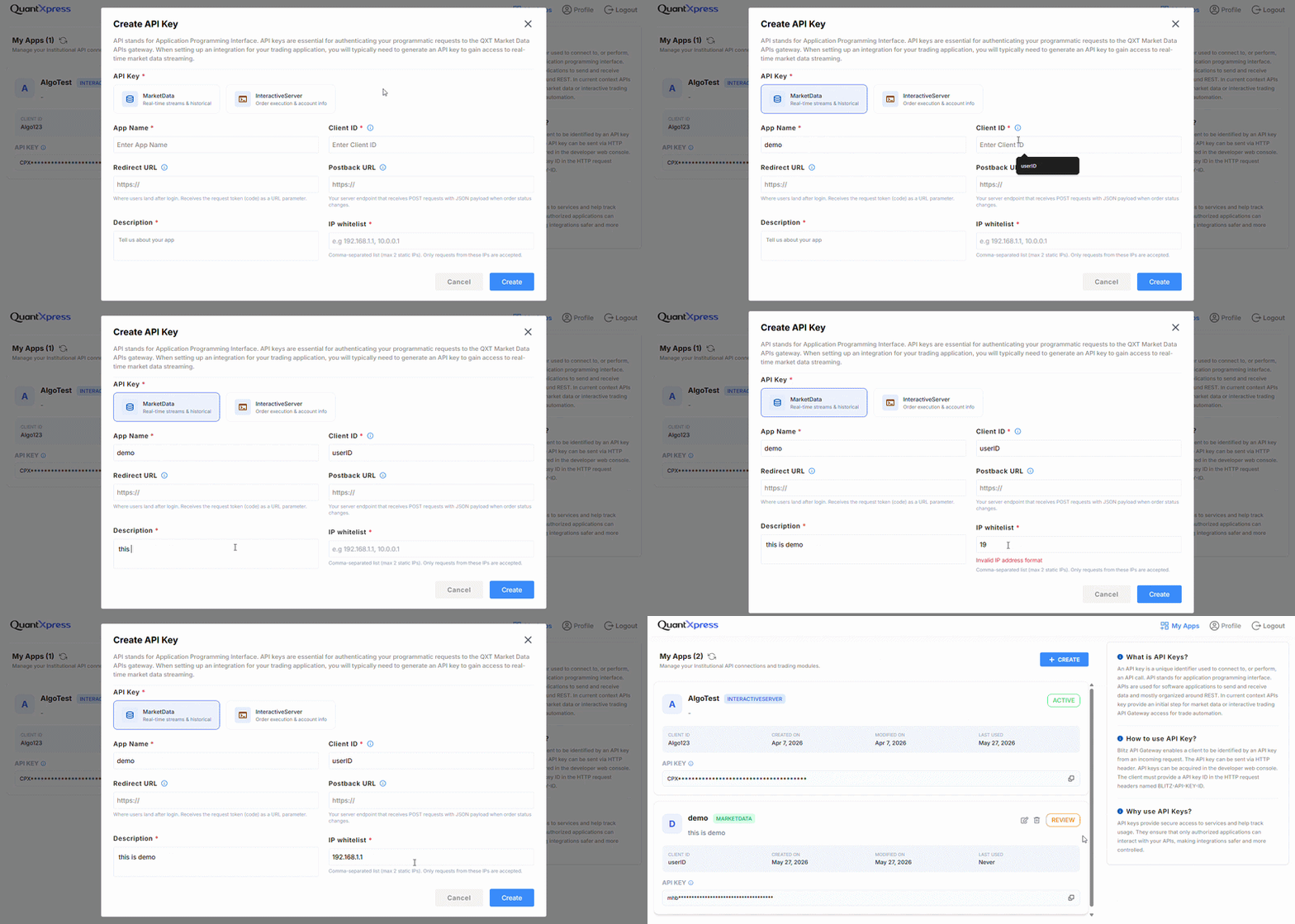
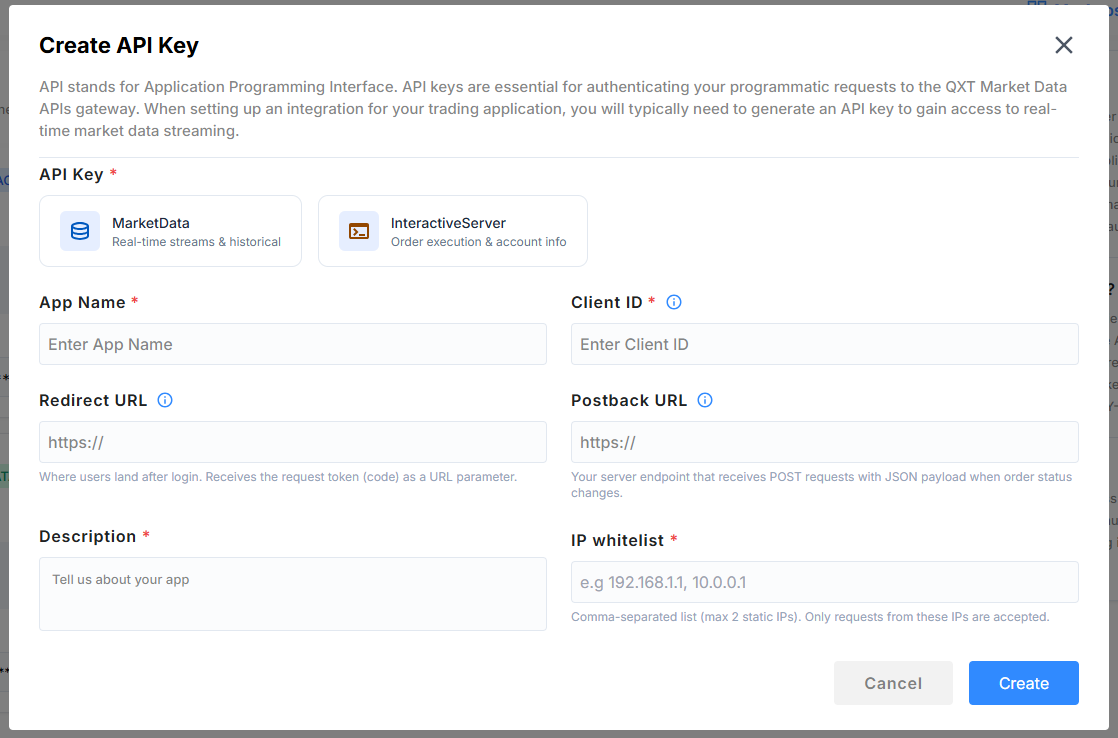
- You will see an App Creation form. Fill in the required fields:
-
API Key Type: Choose the type of access your app requires:
MarketData: For fetching live and historical market data.InteractiveServer: For placing orders, managing positions, and trading operations.
-
App Name: Any descriptive name for your application (e.g.,
My Algo Trading App). This name is only for identification. - Client ID: Provide a unique client identifier for your application.
- Redirect URL: The web address the system redirects to after successful login. (Example:
https://yourdomain.com/callback) - Postback URL: Specify this if your application requires automated notifications for order updates or trades.
- Description: A short explanation of what your app does.
-
IP whitelist: Only requests from these IPs are accepted. Add the IP addresses that are allowed to call the API. See IP Whitelisting for full details.
-
Click Create API Key.
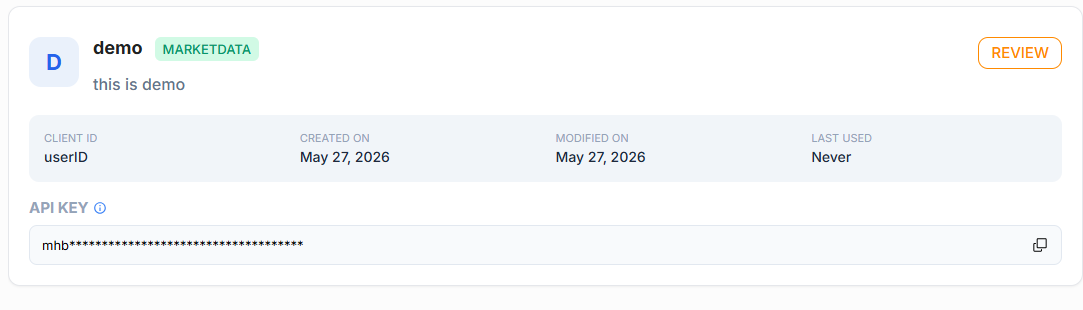
Key Status
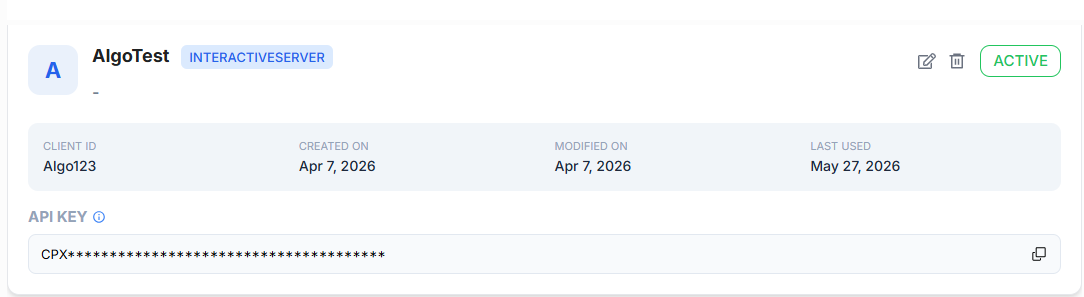
After creating API Key contact the Admin to active it. You can see the status at the top right corner of the key
Step 3: Secure Your API Key
Once the app is created and active, the system will generate and display your new API Key.
Security Warning
Your API Key will only be displayed once. Copy and store it securely. Treat this key like a password—never share it publicly or save it where others can access it.
How to Use Your API Key
Once generated, you can use the API Key to generate the Access Token.
Managing Your API Keys
You can view, edit, or delete API keys anytime through the API Management page:
- Edit – Modify settings like the app name, redirect URL, IP whitelist, or description.
- Delete – Permanently remove an API key when it is no longer needed. (Note: Any active applications using a deleted key will immediately lose access.)
To manage or update the IP addresses allowed to access your app, refer to the IP Whitelisting guide.
Best Practices & Common Mistakes
Best Practices
- Store keys securely: Keep your keys in a safe, private location.
- Separate Keys: Generate different keys for different applications to keep your connections organized and secure.
Common Mistakes to Avoid
- Sharing your API key with unauthorized individuals.
- Providing an incorrect Redirect URL, which can cause connection failures.